How to Play Browser Games in Fullscreen
Updated · 3 min read
Short answer
Click the Fullscreen button under the game player to enlarge the game only, or use your browser's own shortcut: F11 on Windows, Ctrl+Cmd+F on a Mac. Press Esc to leave the game's fullscreen mode.
Two kinds of fullscreen
The Fullscreen button on every Gametroz game page asks your browser to show just the game player across the whole screen, with the rest of the page hidden. A browser shortcut does something different: it hides the browser's toolbars and tabs, but the page, including the site header and the text around the game, is still there. For playing, the button is usually what you want.
On a computer
- Open a game page and wait for the game to load.
- Click the Fullscreen button under the player. The game fills the screen.
- Click inside the game once if the keyboard does not respond.
- Press Esc to leave fullscreen and return to the page.
Keyboard shortcuts for the whole browser
| System | Enter fullscreen | Leave fullscreen |
|---|---|---|
| Windows and Linux | F11 | F11 again, or Esc in some browsers |
| Mac | Ctrl+Cmd+F | Ctrl+Cmd+F again, or Esc |
| Chromebook | The fullscreen key in the top row of the keyboard | Press the same key again |
| Any system, game button | Fullscreen button under the player | Esc |
On a phone or tablet
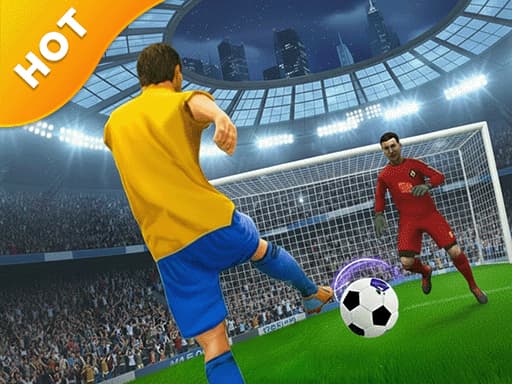
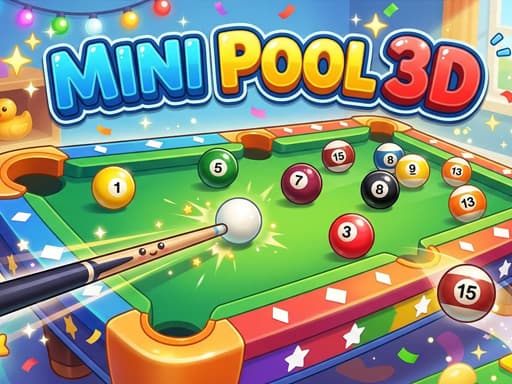
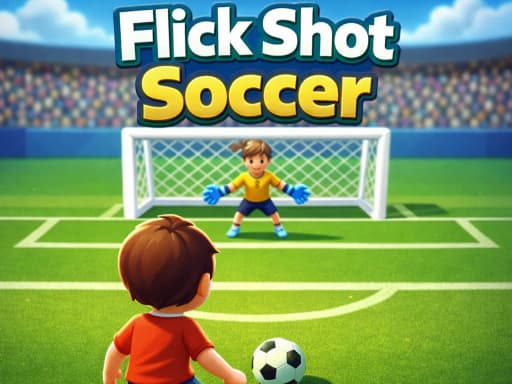
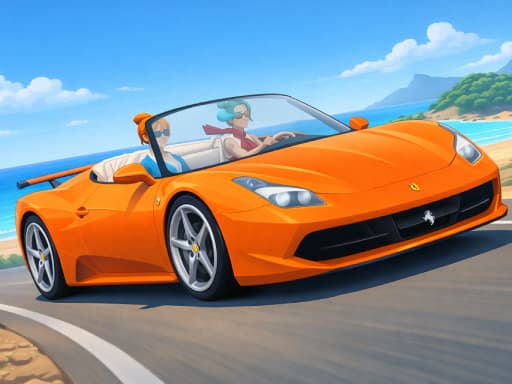
Phones show games in the orientation they were built for. The catalog records whether each game is landscape or portrait, and the examples below show the difference. Landscape games are meant to be played with the phone turned sideways; portrait games suit a phone held upright.
| Game | Screen | What you do |
|---|---|---|
| Dream Football Game | Landscape | Keyboard keys for sprint, passes and shots |
| Drift Car Driving | Landscape | W A S D or arrow keys to drive |
| Mini Pool 3D | Landscape | Mouse click or tap |
| Flick Shot Soccer | Portrait | Drag to aim, release to kick |
| Drive Pro 3D | Portrait | Press and hold to accelerate, release to brake |
| Monster Escape: Logic Puzzle Adventure | Portrait | On-screen buttons rotate the world |
Games to try in each orientation

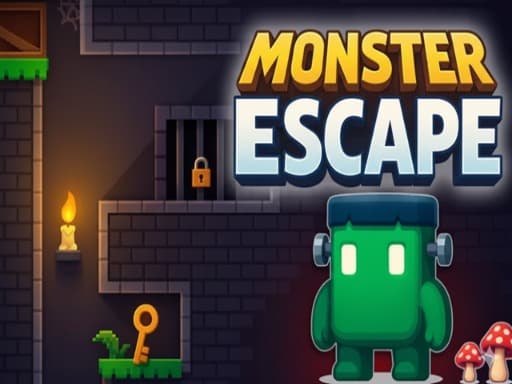
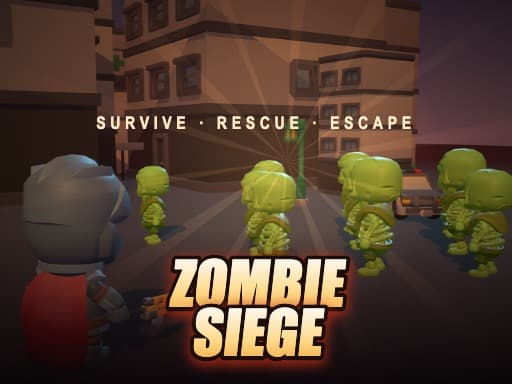
- Open the game and check its screen orientation in the table above or on its page.
- Turn the phone to match: sideways for landscape, upright for portrait. If it does not rotate, check that rotation lock is off in your device settings.
- Tap the Fullscreen button. If your browser supports it, the game fills the screen.
- Scroll the page slightly if your browser hides its address bar when you scroll, which gives the game more room.
Some games say so in their own instructions. For example, Zombie Siege lists mobile play as landscape only, so turn the phone sideways before you start it.
If fullscreen does not work
- If the button says fullscreen is not available in this browser, the browser does not support it for web page elements. Some mobile browsers have limited or no support. Use the keyboard shortcut on a computer, or rotate the phone and scroll instead.
- If the game goes fullscreen but ignores the keyboard, click inside the game once to give it focus.
- If the picture looks too small or cut off, reset the browser zoom with Ctrl+0 (Cmd+0 on a Mac) and try again.
- If the game is slow in fullscreen, a larger screen means more pixels to draw. Browser games for low-end PCs lists settings that can help.
- Browser extensions or pop-up blockers can interfere with some pages. Try a private window to check.
Quick reminder
Esc leaves the game's fullscreen mode. F11 or Ctrl+Cmd+F is a separate browser setting, so use the same shortcut to turn it off.
Related guides
Browser games for low-end PCs helps when a game is slow. Games you can play without downloading explains how browser games work, and the best free browser games gives you something to play.